User guide
How to use VibeSafe — from sign-up to your first fix
VibeSafe scans AI-built apps for exposed keys, security flaws, bugs, and risky code — and explains every fix in plain English. This guide walks you through the whole journey with screenshots. Total time: about 5 minutes.
1What VibeSafe does
Tools like Lovable, Bolt, Cursor, and Replit build apps fast — but the code they generate often ships with exposed API keys, open databases, and unsafe logic. VibeSafe checks your code for these risks in about ten seconds and tells you exactly what to fix and how, without security jargon. Your code is never stored.
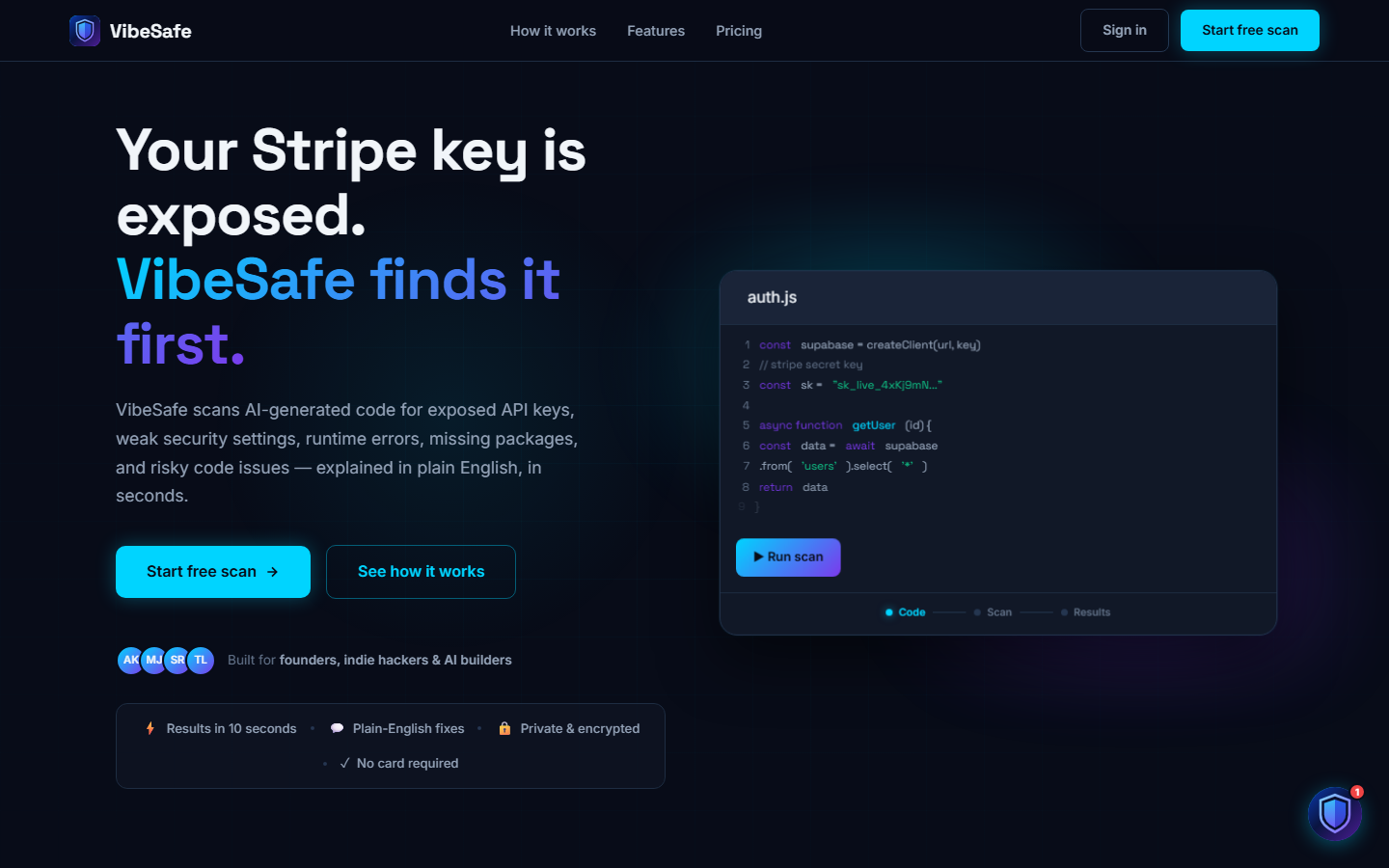
vibesafe.info — start with the "Start free scan" button
2Create an account
- Go to vibesafe.info and click Start free scan
- Sign up with Google, GitHub, or email — no credit card needed
- You land in your dashboard with 10 free scans every month
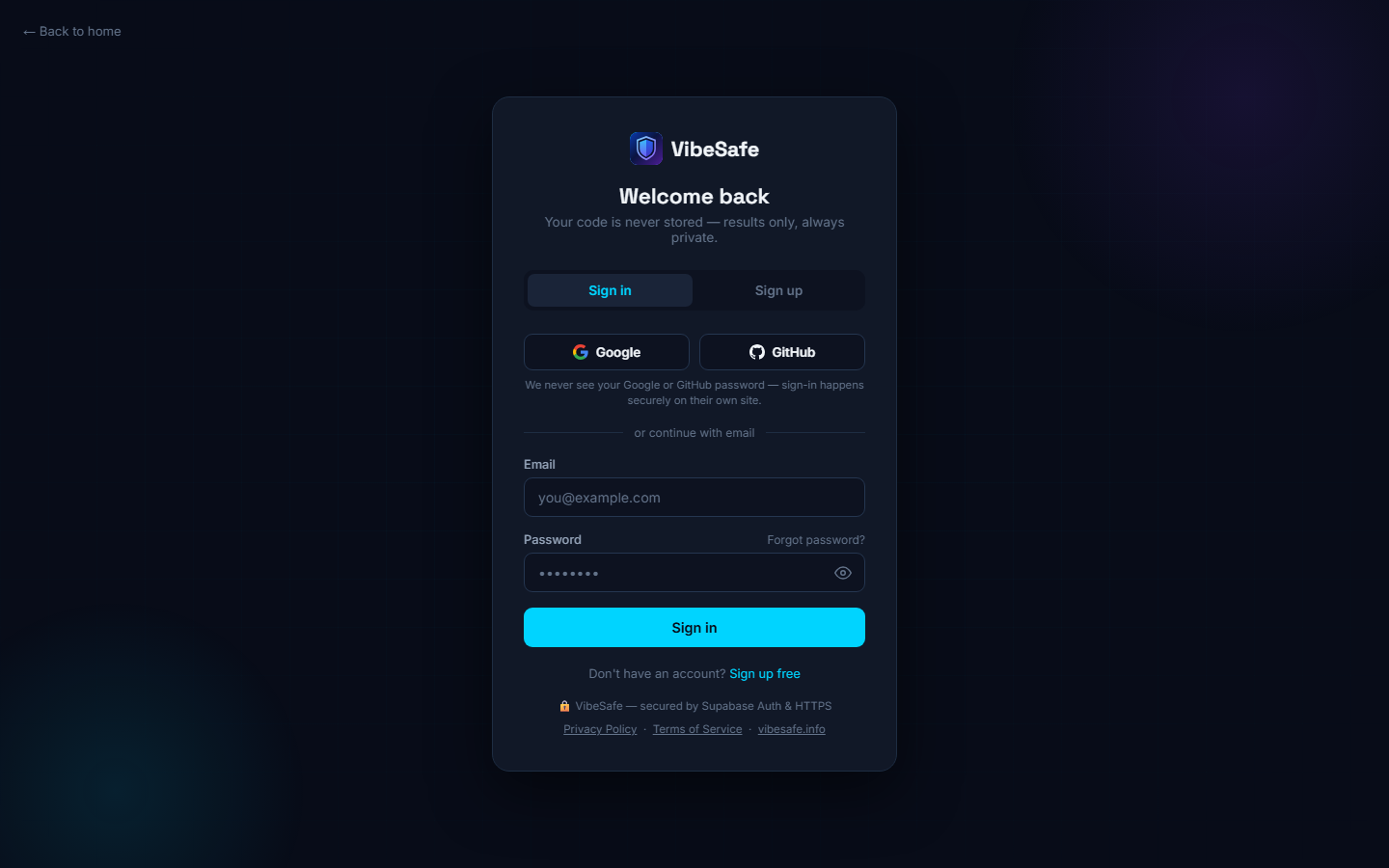
Sign in with Google, GitHub, or email
3Run your first scan
The dashboard gives you four ways to scan, in the left sidebar:
- Paste code — copy code from your AI tool and paste it into the editor
- Upload file — drop in a file straight from your project
- Scan GitHub file — paste a link to a code file in your repo and VibeSafe fetches and scans the code (private repos supported)
- Scan live website — point VibeSafe at your deployed app; it checks the running site for missing security headers, HTTPS issues, and exposed paths — no code needed
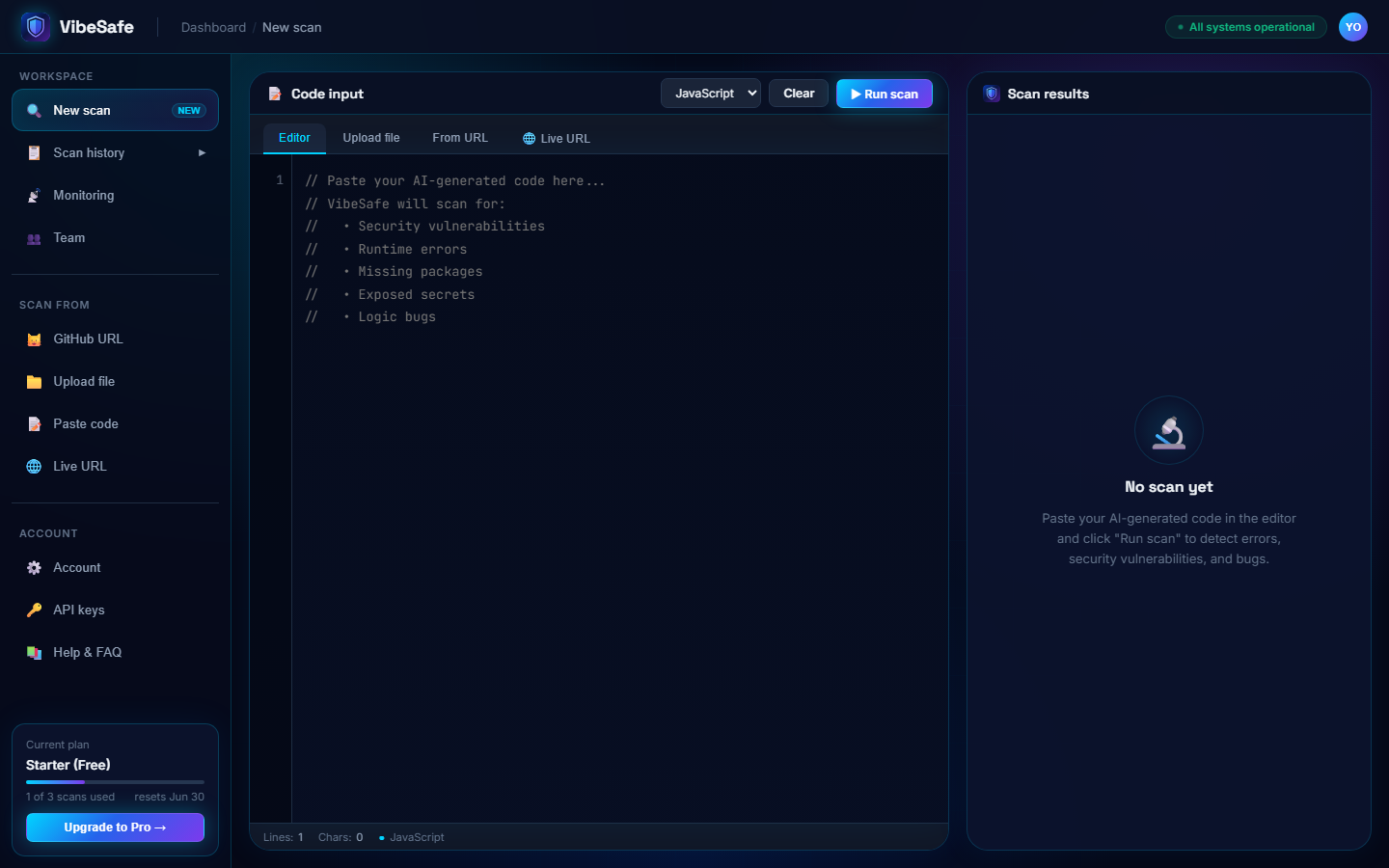
The dashboard — pick a scan type from the sidebar
Paste your code, pick the language (or let it auto-detect), and hit ▶ Run scan. Results arrive in about ten seconds.
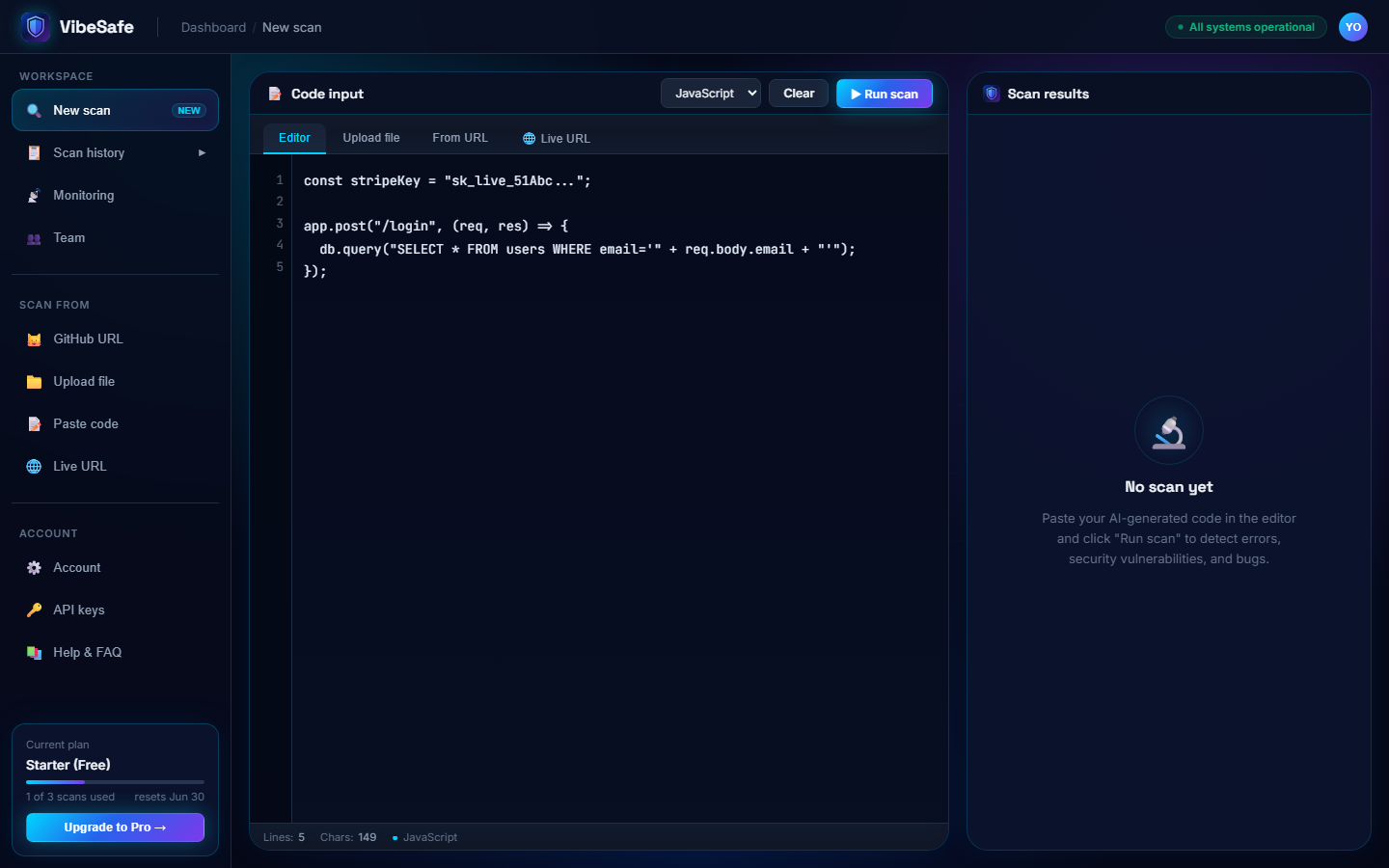
Paste code and click Run scan
4Understand your results
Every scan produces a security score out of 100 and a list of issues sorted by severity:
- 🔴 Critical — exposed keys, injection flaws, open databases. Fix before deploying.
- 🟡 Warning — missing error handling, weak logic. Fix before launch week.
- 🔵 Info — code quality suggestions. Fix when convenient.
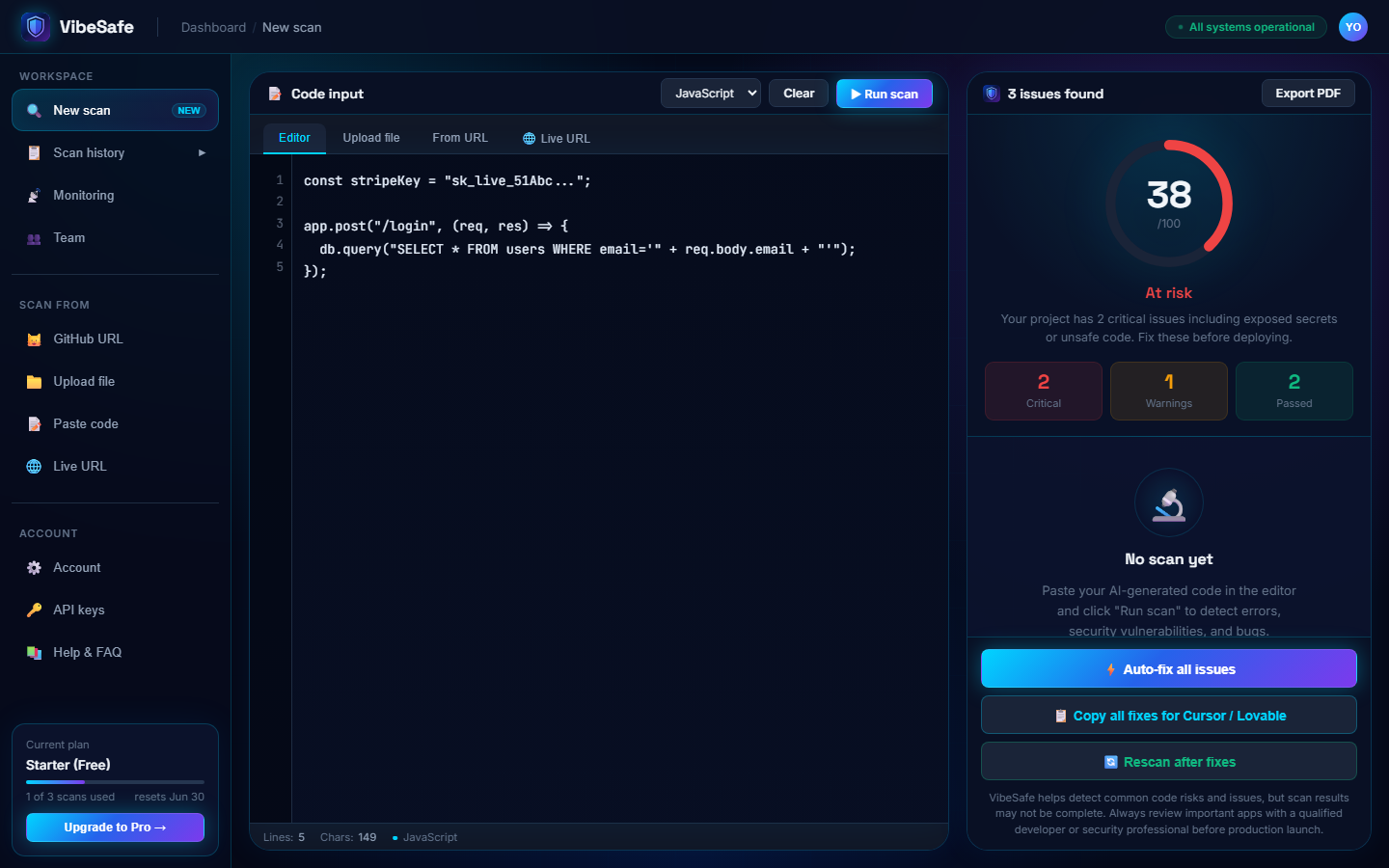
The score gauge, verdict, and issue counts
If critical issues are found, a summary pops up explaining why your score is low — each flaw, where it is, and what an attacker could do with it:
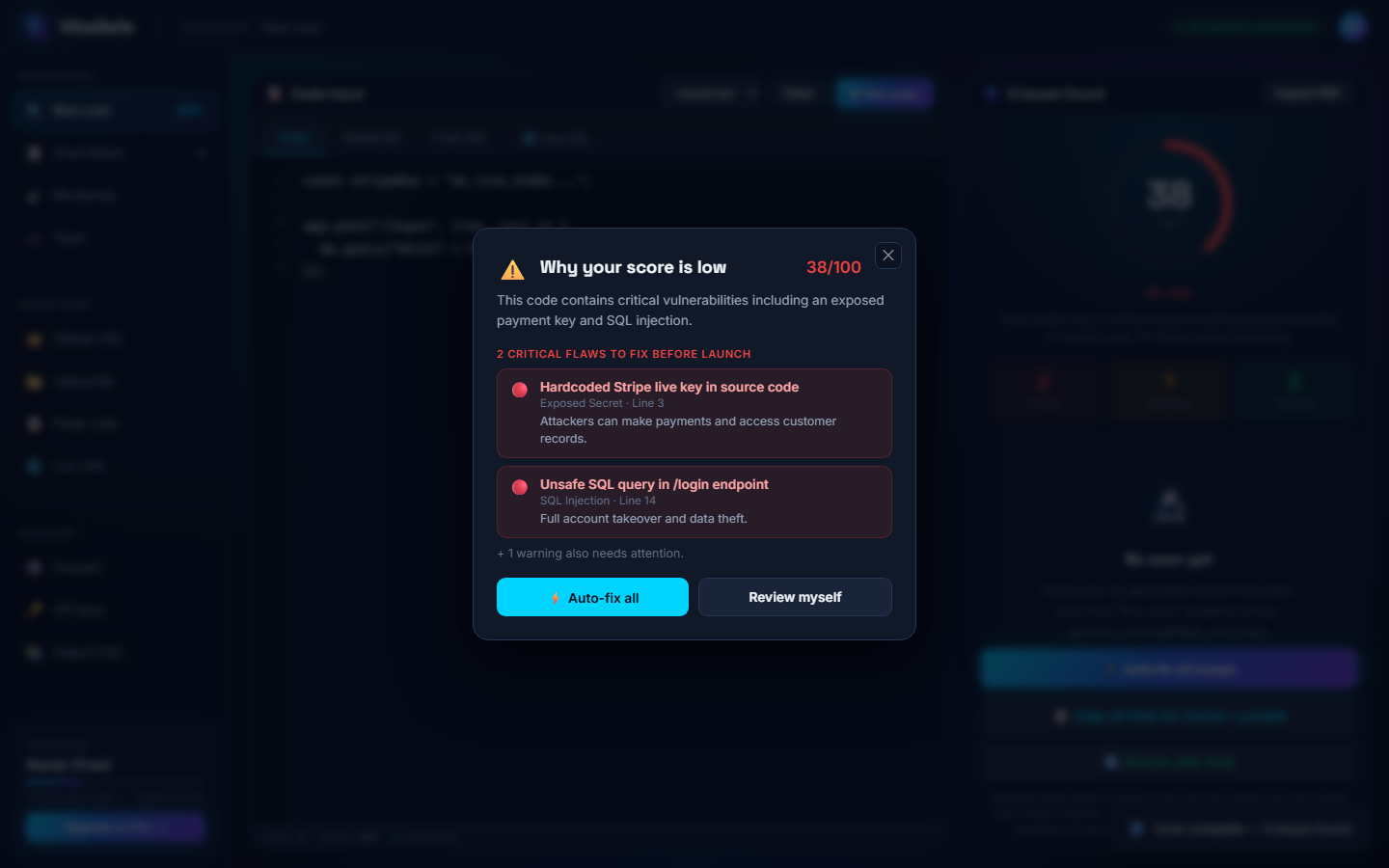
The post-scan summary of critical flaws
Click any issue to expand it. You get a plain-English explanation, the exact line, and a before/after fix:
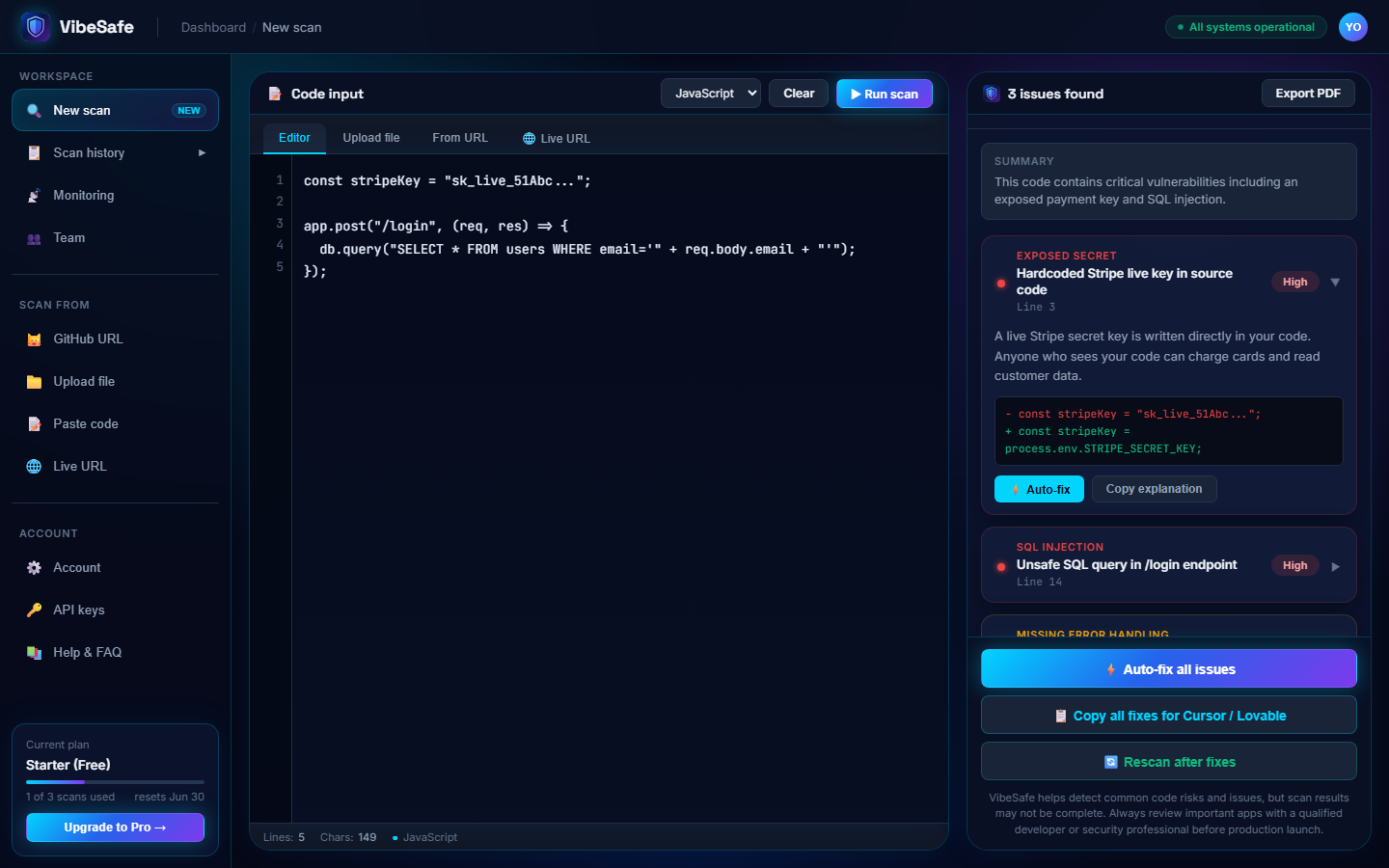
Every issue shows the problem line and the fixed version
5Copy or apply fixes
- ⚡ Auto-fix all issues — applies the suggested fixes to your pasted code in one click
- 📋 Copy all fixes for Cursor / Lovable — copies every fix as one clear prompt; paste it into your AI tool and it applies them for you
- 🔄 Rescan after fixes — run the scan again and watch your score climb
New to these terms? The Security Issues Explained page breaks down every issue VibeSafe finds — exposed keys, SQL injection, RLS, CSP, and more — in plain English with a before/after fix for each.
6Use the VS Code extension
Scan without leaving your editor — works in VS Code and Cursor.
- Open the Extensions panel (Ctrl+Shift+X), search VibeSafe, and install "VibeSafe - Security Scanner" by vibesafe-info
- Connect in one click: open your connect page, sign in, and it links your editor automatically — no keys to copy
- Open any file and press Ctrl+Shift+V (or click the 🛡 VibeSafe button in the status bar) to scan
- After each scan you get your score, the issues panel, and one-click Copy fixes
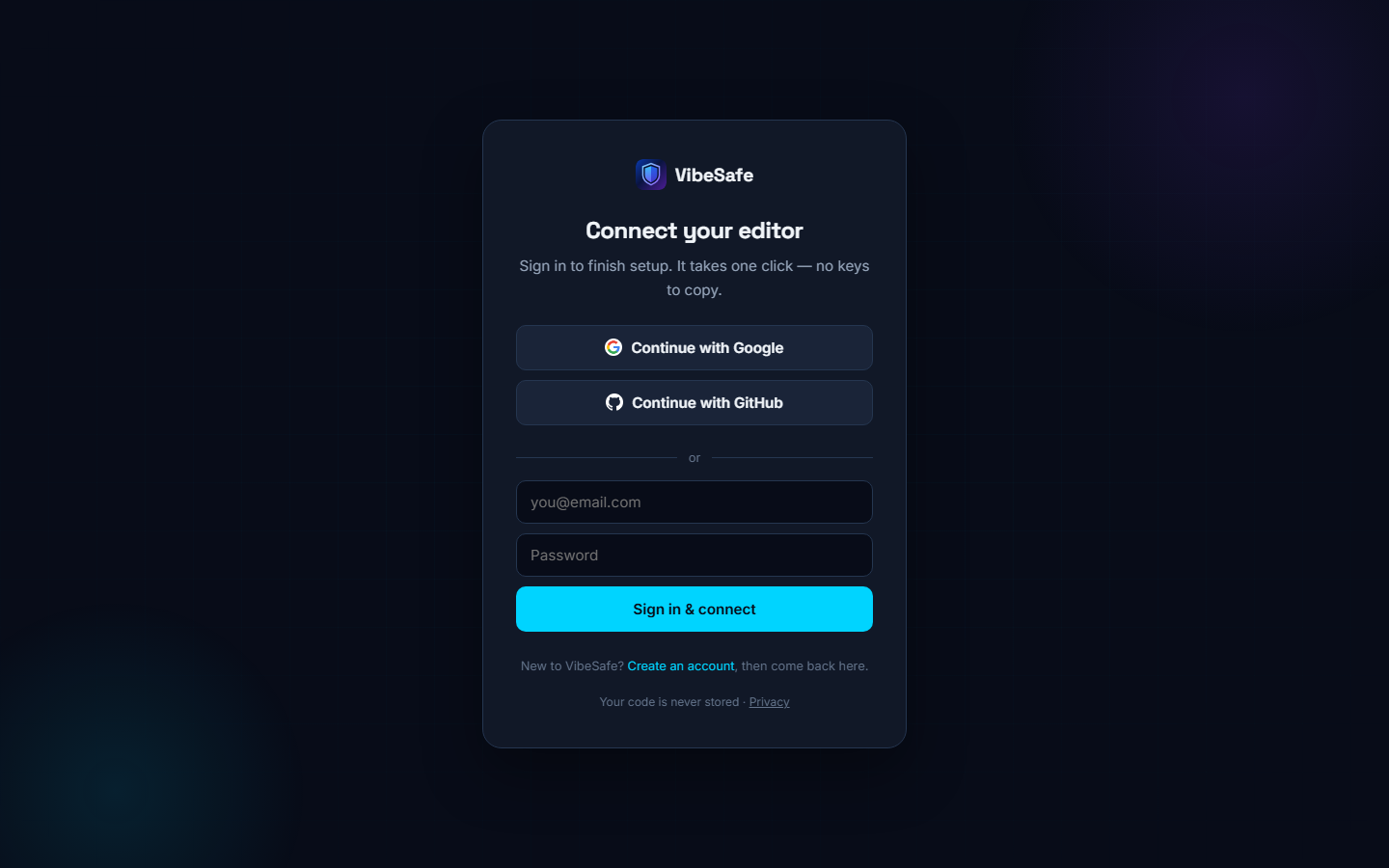
The one-click connect page — sign in and your editor is linked
Also: use VibeSafe inside Claude & Cursor (MCP)
VibeSafe has an MCP server, so you can scan right inside an AI chat — just ask "scan this file with VibeSafe" and it runs. It works in Claude Desktop, Cursor, and any MCP client, exposing three tools: scan code, scan a live website, and run a Launch Check.
- Get a free API key: dashboard → API keys → Generate
- Add VibeSafe to your client's MCP config (full copy-paste setup in the MCP server README):
Also: scan from the command line (CLI)
Prefer the terminal? The VibeSafe CLI scans a whole file or folder in seconds and prints each issue with a one-line fix. It exits with an error when critical issues are found, so it slots straight into a pre-commit hook or CI step.
- Get a free API key: dashboard → API keys → Generate
- Set it as
VIBESAFE_API_KEY, then run:
Full options are in the CLI README.
Also: run VibeSafe in your CI/CD (GitHub Action)
To catch issues automatically, add the VibeSafe Vulnerability Scanner GitHub Action. It scans on every push or pull request and fails the build if critical issues are found, so risky code never reaches production.
- Store a free API key as a repository secret named
VIBESAFE_API_KEY - Add the action from the GitHub Marketplace to your workflow file
7Scan history & reports
Every scan is saved to Scan history in the sidebar — score, issue count, and date — so you can track progress as you fix things. Use Export PDF on any result to download a clean, branded security report you can share with clients, co-founders, or investors.
8Run a Launch Check 🚀
New: before you share your app with users, clients, or investors, let VibeSafe test it like a real person. Launch Check opens your deployed app in a real browser, clicks through pages, captures screenshots and errors, and gives you a launch-readiness score.
- Dashboard → 🚀 Launch Check in the sidebar
- Paste your app's URL (e.g.
https://yourapp.vercel.app) - Optionally describe what should work — e.g. "landing page and pricing"
- Click Test my app and wait about 30 seconds
The report shows your score out of 100, the pages it visited with load times, what worked, what needs fixing (with severity and a suggested fix for each), screenshots, and any console or network errors it caught. Fix the issues, hit 🔄 Retest, and watch your score climb.
Keep watching after launch: continuous monitoring 📡
Pro & Team: security can slip after you launch — a new deploy exposes a key, a header disappears. Add your live sites to 📡 Monitoring in the sidebar and VibeSafe re-scans them every week automatically.
- Dashboard → 📡 Monitoring → enter your live URL → Watch
- The first scan sets a baseline quietly — no email
- After that, you're emailed only if security drops (score falls or a new critical appears)
9Check who can see your data 🔐
Open Data Access in the dashboard sidebar. It answers the question that matters most in an AI-built app: can one customer reach another customer's records?
The quick check — no setup. Paste your app's address and press Check what strangers can see. VibeSafe reads your page the way any visitor's browser does, finds the database and API behind it, and reports every table and route that answers someone with no account. It only reads: nothing is written, changed or deleted, and no customer data is kept — only table names, column names and counts.
The full check — your database's rules. Run the read-only query VibeSafe gives you in your Supabase SQL editor and paste the result back. You get every table with its access rule, what is at risk, and the exact SQL to fix each one.
The proof — two test users. On a staging project, create two test users yourself, then enter your project address, your public (anon) key and both logins. VibeSafe signs in as each and tries to read, change, delete and impersonate across them, then shows a grid: blocked, allowed, or not tested with the reason. It creates one marker row per table and deletes it afterwards.
Then prove the fix. Apply the SQL, run the test again, and VibeSafe compares it with your last run: what is now closed, what is still open, and anything new.
Never point the two-user test at the database your customers use. It writes and deletes test rows. VibeSafe asks you to confirm it is staging, refuses your Supabase secret (service_role) key, and uses the test-user passwords for that run only — they are never stored.
The Data Access check is part of Pro.
10Plans and limits
- Starter (free) — 10 scans every month, all scan types, forever
- Pro ($29/mo) — unlimited scans, auto-fixes, priority support. You can try it free for 7 days from the dashboard: no card is asked for, and it goes back to free by itself when the 7 days are up.
- Team ($99/mo) — everything in Pro for up to 10 people, shared history, monitoring
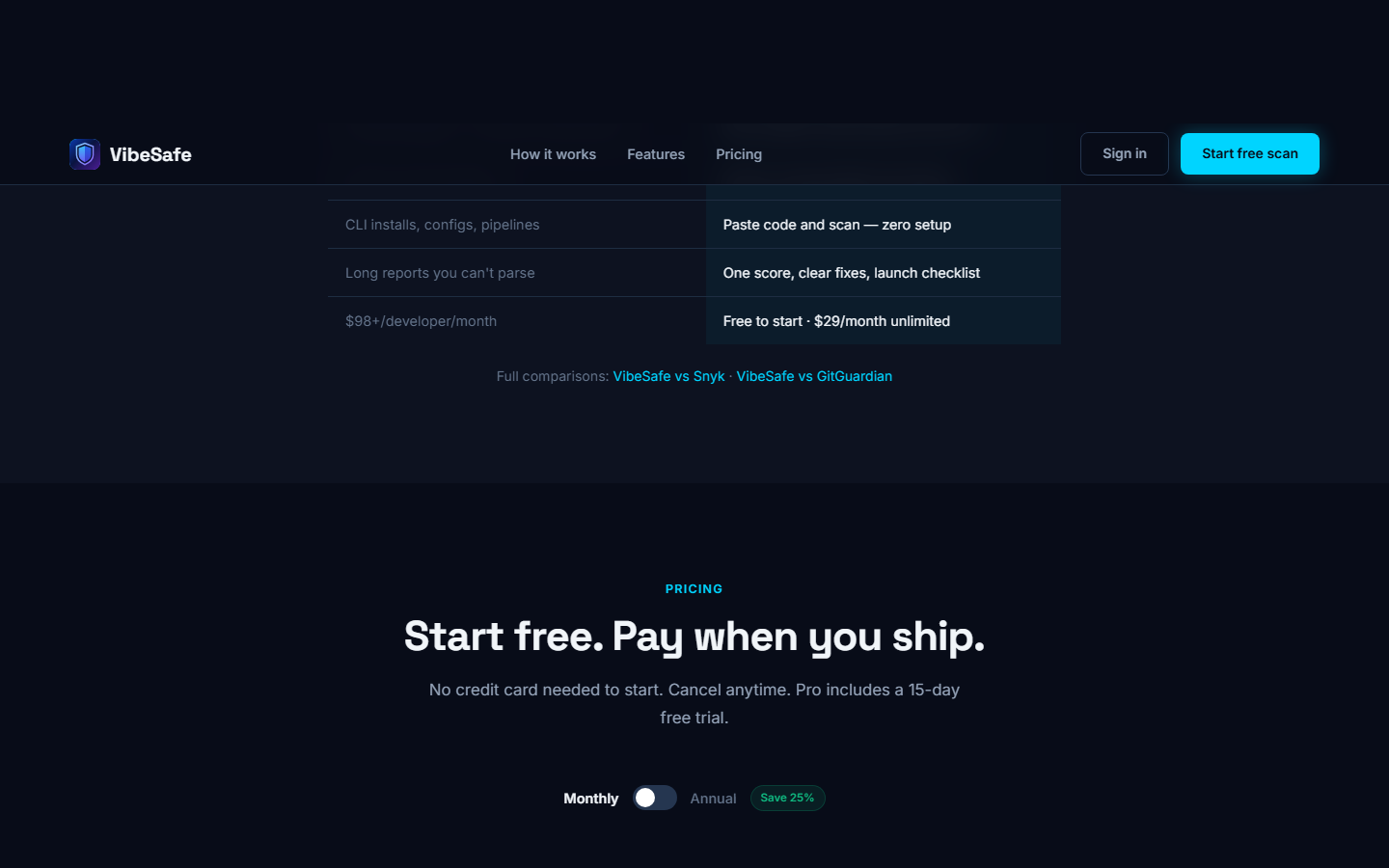
Plans — start free, upgrade when you're shipping
11Troubleshooting
vibesafe_sk_.10 free scans every month · No credit card · Your code is never stored